
Orchard Primary and Pre-School
Arbor Parent Portal
What is the Arbor Parent Portal
The Arbor Parent Portal and Parent App are designed to help you stay connected with your child's school life. You can use them to:
- Sign your child up for clubs and trips
- Manage payments for school activities
- Monitor your child's attendance, behaviour, and academic progress
Understanding the difference: Portal vs App
It's important to know the difference between the two ways you can access Arbor:
- Arbor Parent Portal: This is the website version you access using a web browser (like Chrome, Firefox, Safari, Edge) on a computer, laptop, or even your phone's browser.
- Arbor Parent App: This is the mobile application you download to your smartphone or tablet from your device's app store (Google Play Store for Android, Apple App Store for iOS).
Crucial Note for First-Time Users: You must set up your password and accept the terms of use through the Parent Portal (website) first. You cannot do this through the app.
Downloading the Parent App
For Android devices:
- Go to your device's Play Store.
- Search for 'Arbor' and tap the top result: "Arbor Parent & Guardian Portal"
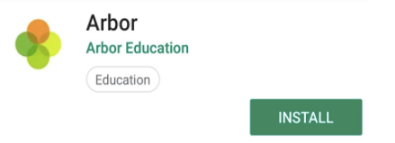
For iOS (Apple) Devices:
- Go to your device's App Store.
- Search for 'Arbor' and tap the top result
Logging into the Parent Portal or App
Once you have the app or are on the Parent Portal website, follow these steps to log in.
Important: Your school needs to have enabled the Parent Portal for you to log in. If you haven't received a welcome email or login details, please contact your school directly.
A. First-Time Login (Setting Your Password)
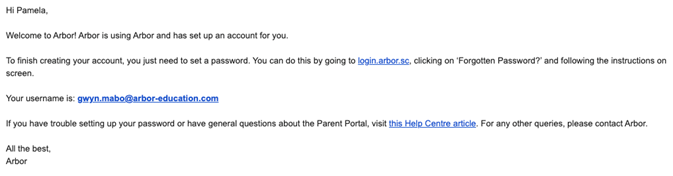
If this is your first time logging in, you'll need to set your password. Your school will send you a welcome email with a link to do this.
- Find the Welcome Email: Look for an email from Arbor in your inbox.
-
- Tip: If you can't find it, check your junk or spam folder!
- Click the Login Link: Inside the email, click on the unique login link provided. This link will take you to a secure page to set up your account.
- Set Your Password:
- Enter your chosen password into the Password field.
- Enter it again into the Confirm Password field.
- Make sure your password meets the criteria (e.g., length, characters) shown on the screen.
- Click the Set Password button.
- Log In: You'll then be redirected to the login page. Enter your email address (the one your school has for you) and your newly set password, then click Log In.
Being a Guardian for Multiple Children
If you are the Primary Guardian for more than one child in the school, you can access and view each child through the same portal.
On the Parent Portal
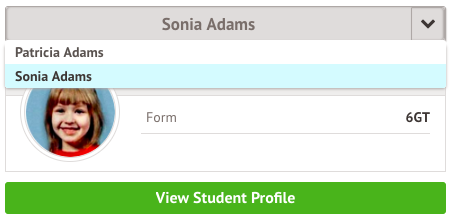
On the left-hand side of your homepage, click the arrow next to the current child's name. Select the other child.
When doing this for the first time, you will need to enter your other child’s date of birth.
On the Parent App
Click the profile icon at the bottom right of your screen and click Switch student.
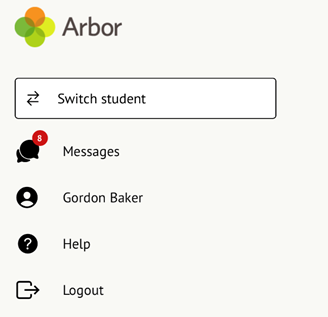
Choose which child you would like to view.
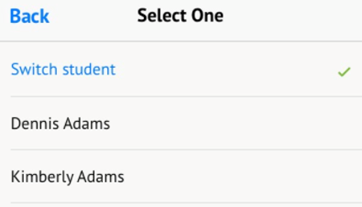
If this is the first time you are viewing information for this child, you will have to confirm their birth date.
How can parents sign up for the Parent Portal or Parent App if they have a child at more than one school using Arbor?
If a parent has children at more than one school their experience of logging into the Parent Portal and Parent App will be a little different. If they use the same email address on their profile at both schools they will be asked which school they want to log into when they visit login.arbor.sc or go to log into the Parent App.
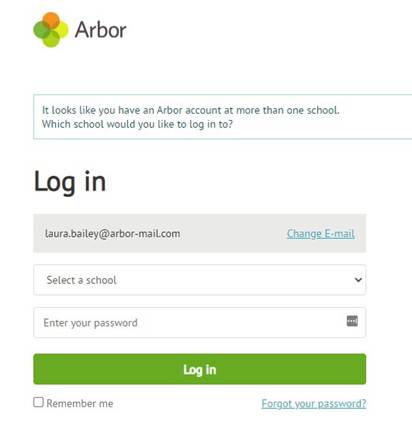
Please note: The parent won't be able to switch between students on the Parent Portal or Parent App if the students attend two different schools. This is because each guardian at each school has a separate profile/account.
This means that if a parent has two students at different schools, they will have two separate accounts, and Arbor won't link these accounts, other than at the login stage on the Parent App or on the login.arbor.sc page. To view the information of each child at their respective schools, the guardian will need to log out of one account and into another.
Can parents see other guardian addresses and student contact details on the Parent Portal or Parent App?
Guardians cannot view each other's contact details on the Parent Portal or Parent App. The visibility of student details depends on the living arrangements of the guardians. If guardians live with the student, they can see the student's details but not each other's. If they do not live with the student, they can only see their own details and the student's information, but not the other guardian's details.
Guardians can't see the contact details of other guardians. This is the same for all guardians, not just those who are separated or where there is a Court Order.